
Monitor your deployment
Check that your application's rule checker is running, then follow a request through its records.
Your application has stopped a request, or a decision has not appeared in AuthRail. Where should you look? Start with the deployment's connection, then follow the affected request.
A deployment is one configured installation of your AI application. Its sidecar is the rule-checking process running beside it. Health describes whether that process is running, has usable rules and has reports waiting for delivery. It is separate from the Health assessment of a governance Control.
There are three places to look, each with a different purpose:
| Information | Where to find it | What it helps you answer |
|---|---|---|
| Connection status and Action records | Your AuthRail workspace. | Is the deployment communicating, and what happened to this request? |
| Local process logs | The terminal, service manager or Docker running your sidecar. | What checks and reporting steps did the sidecar handle? |
| Optional monitoring data, called telemetry | Your own monitoring system. | Which technical step is slow or failing? |
The first two work without setting up a monitoring service. This page starts with them; optional telemetry setup comes afterwards.
Check the connection in AuthRail
- Open AI Inventory and choose your AI system.
- Under Deployments, open the installation you want to inspect.
- In Overview, find Connection health and its last update time.
- Select Check again. Read any message about rules or reports waiting for delivery.
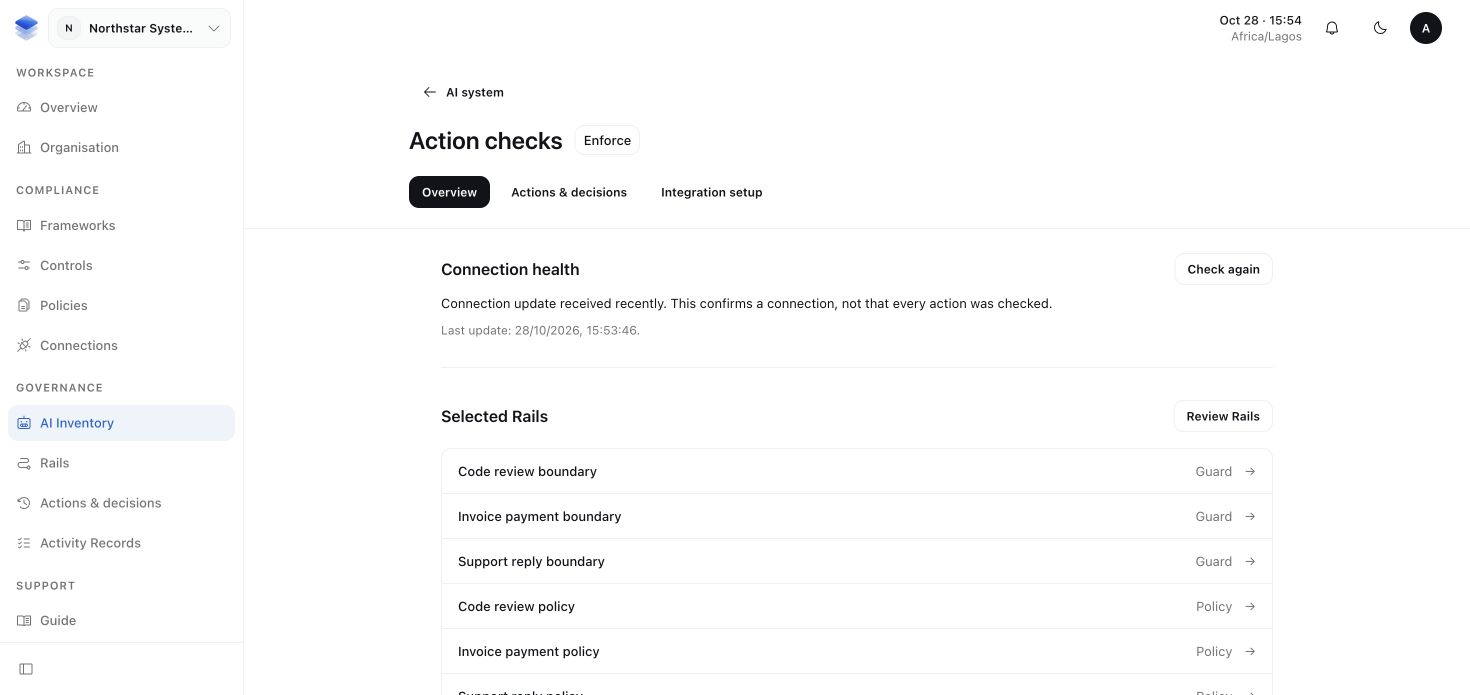
Expected result: a recent connection update and usable rules for the intended deployment. If the update is old, check that the sidecar is running and can reach AuthRail. Ask the person operating it to check its network and deployment credential.
A recent update confirms communication. Check that the application's actual tools use the SDK before relying on Enforce protection; see the security review.
Follow a request in the connection log
An Action is AuthRail's record of a particular request. Use it to investigate one payment, reply or other protected operation:
- In the deployment, open Actions & decisions and find Connection log.
- Find the event for the request and select View related action. If your application supplies a business request key, enter it under Find an exact action key.
- Open the Action's checks, approval and execution reports. Read the request decision separately from the application's reported outcome.
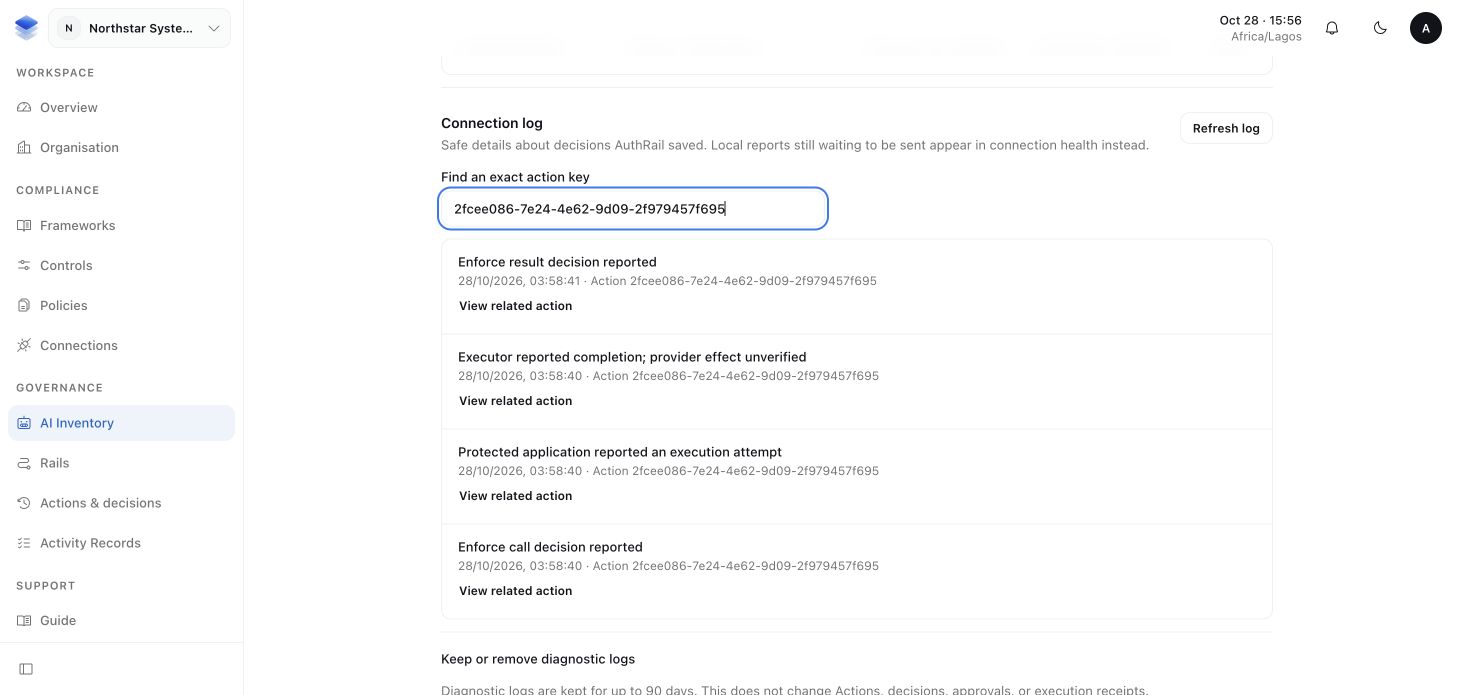
Expected result: you can explain the decision and whether the application reported completion. To confirm a provider effect independently, inspect the matching record in that provider. If the outcome is uncertain, follow execution and recovery before retrying.
If the log cannot refresh, retry after restoring the connection. An older list does not tell you whether a newer event happened.
Follow the sidecar's local logs
Use local logs when you need to see what the running process handled. For a native process started in the foreground, read its terminal. For a service, read the output captured by its service manager.
For the Docker setup, run this from the sidecar checkout:
docker compose -p authrail-runtime -f docker/compose.yaml logs --tail 50 --follow sidecarTry a safe request in your application. Look for decision events and any
execution_report events. These include identifiers that help you find the
related Action in AuthRail. See the sample terminal output
for an allowed, denied and approval-required sequence.
Expected result: log entries appear as requests are checked. Press Ctrl+C to stop following the output; the sidecar keeps running. Local logs work with or without telemetry. They omit arguments, source text, provider responses and credentials.
More about local status and log events
For a native sidecar, check its status on the same host:
curl --fail --silent --show-error http://127.0.0.1:7078/healthA bundle is the signed set of Rails and settings sent by AuthRail. In the
status response, bundleValid: true means the loaded bundle passes its checks
and has not expired. Compare mode with the mode selected in AuthRail.
pendingReports counts reports waiting for delivery; blockedReports counts
reports needing local review. Preserve those reports while investigating.
For Docker, run the supplied health command from the sidecar checkout:
docker compose -p authrail-runtime -f docker/compose.yaml exec sidecar /usr/local/bin/authrail-container healthIt prints no JSON and exits 0 for a valid loaded bundle, or 1 otherwise.
The listener is inside Docker's private application network. Follow the
Docker placement guide to connect the SDK to it.
| Event | Meaning |
|---|---|
decision | A call or result check, its mode, outcome and reporting status. |
execution_report | The application reported an attempt's start, completion, failure or uncertainty. |
report_delivered | AuthRail acknowledged a previously queued report. This does not resume a held action. |
check_unavailable | The sidecar could not establish trusted request history. |
request_completed | A local SDK request finished. Read the decision outcome separately from its HTTP status. |
retained means AuthRail acknowledged the report. queued means the sidecar
saved it locally for later delivery. A reported success describes the
application's assertion, rather than an independent provider lookup.
Logs are best-effort diagnostics. Slow or failed output can drop entries;
logDrops counts queue overflow and output errors. Your operator owns log
capture, rotation and retention. Durable Actions and the report queue have
separate responsibilities. Keep recording-gap files when reporting cannot be
confirmed; do not rerun an operation just to recreate its report.
In AuthRail's Connection log, authorised users can select a date range and export diagnostic entries. Removing diagnostic logs does not remove Actions, decisions, approvals or execution receipts.
Optional: use your own monitoring system
If your operations team already uses monitoring tools, the sidecar can send traces and metrics there. A trace follows the technical steps of a request; a metric counts or measures repeated activity.
OpenTelemetry Protocol (OTLP) is the transport used to send this data. A Collector receives it and forwards it to your monitoring service. This is your team's monitoring setup. AuthRail's Action records continue to use their separate reporting connection to AuthRail.
To enable it:
- Ask your operations team for its OTLP/HTTP Collector address.
- Set
AUTHRAIL_OTLP_ENDPOINTto that address in the sidecar's private deployment configuration. - Check the receiving monitoring service for traces and metrics.
For a native sidecar launched from a terminal, add this to its settings before starting it. Replace the example address with your team's Collector base URL:
export AUTHRAIL_OTLP_ENDPOINT="https://collector.example.com:4318"
./authrail-sidecar
The sidecar adds /v1/traces and /v1/metrics itself. For Docker, put the same
setting under the sidecar service's environment in your private Compose
configuration, then apply it through your normal restart process. This address
belongs to your monitoring system; do not use the AuthRail API address here.
Leave the setting unset if you do not use a Collector. The exporter does not forward the sidecar's process log lines. A telemetry failure does not change a Rail decision; investigate Action reporting separately.
More about response time and maintenance
A request can include a model call, business-data lookups, a local rule check, required AuthRail reports, the provider operation and a result check. Measure each part when investigating slowness. Keep the selected Rails, model settings and installation details with the measurements. Test with safe effects and compare typical and slow runs; a single fastest run cannot describe every deployment. Human approval is a separate waiting period.
Trace identifiers help you find related technical events; they grant no
permission. Keep prompts, credentials, source documents and provider bodies out
of diagnostic fields. telemetryFailures counts dropped telemetry and export
errors, rather than proving that a Collector retained the data.
Before a restart or upgrade, pause protected work and preserve the whole private state directory. Keep keys, credentials, queued reports and recovery history. Check the new process's rules and queues before resuming work. Avoid restoring an older snapshot to clear a warning. The compatibility guide explains the upgrade review.