
Connect your first application
Prepare one action in AuthRail, connect your application, and see its decisions.
Your application already has a function an AI assistant can use: read an invoice, add a comment, or send a reply. Connecting it to AuthRail lets you see how your rules apply to that function's requests and results.
This guide starts with one action in Observe. Your function keeps running as usual while AuthRail records what its rules would decide. By the end, you will be able to open a request in your workspace and inspect its checks.
You need an AuthRail account, access to manage AI Inventory and Rails, and an application with a function you can safely try. Use a safe test system for this first connection: Observe does not stop a function when a rule would deny it.
1. Add the AI system
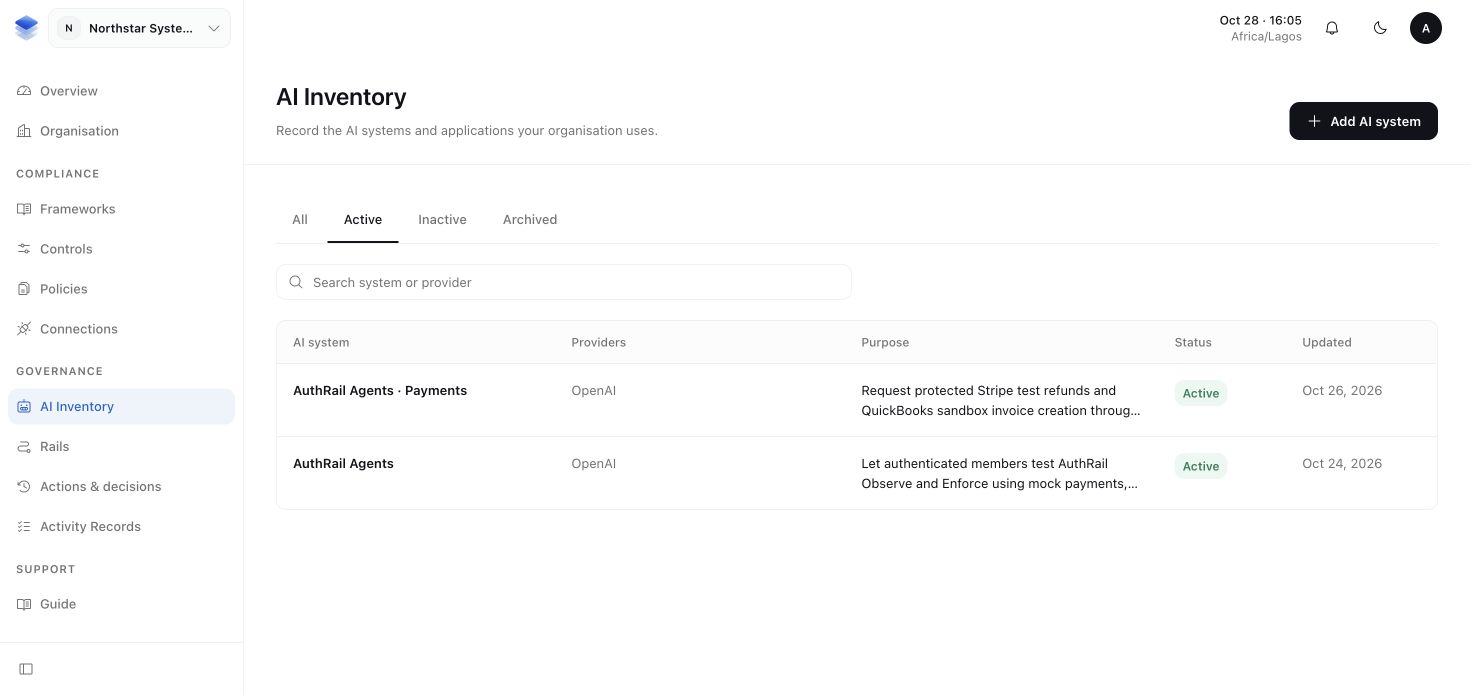
Open your AuthRail workspace and select your organisation. In AI Inventory, add or select the AI system you are connecting. Review its details and confirm its identity.
This gives the application a place in AuthRail. It does not install anything in your application yet.
2. Describe the action
Open Rails → Connected actions. If your action is already listed, open View action details and check that its description, inputs and results match the function you intend to connect.
If it is not listed, select Connect an action:
- Enter an Action name and a stable Action ID, such as
invoice.read. - Under What does it do?, describe the function.
- Name the input field and its type. For example, an invoice reader might
receive a text field named
invoiceId. - Add a result field and type for the value you want to check, such as a text
field named
status. - Choose whether the function reads information, changes data or sends data out, and describe its effect. Then select Add action.
In Registered actions, review the entry and select Confirm action. This describes a function you own; it does not create that function or connect to its provider.
Expand View action details and use Copy version ID under Reviewed Operation Version ID. Keep this value for the SDK setup. It identifies the exact action description you reviewed, rather than just its display name.
3. Publish a rule
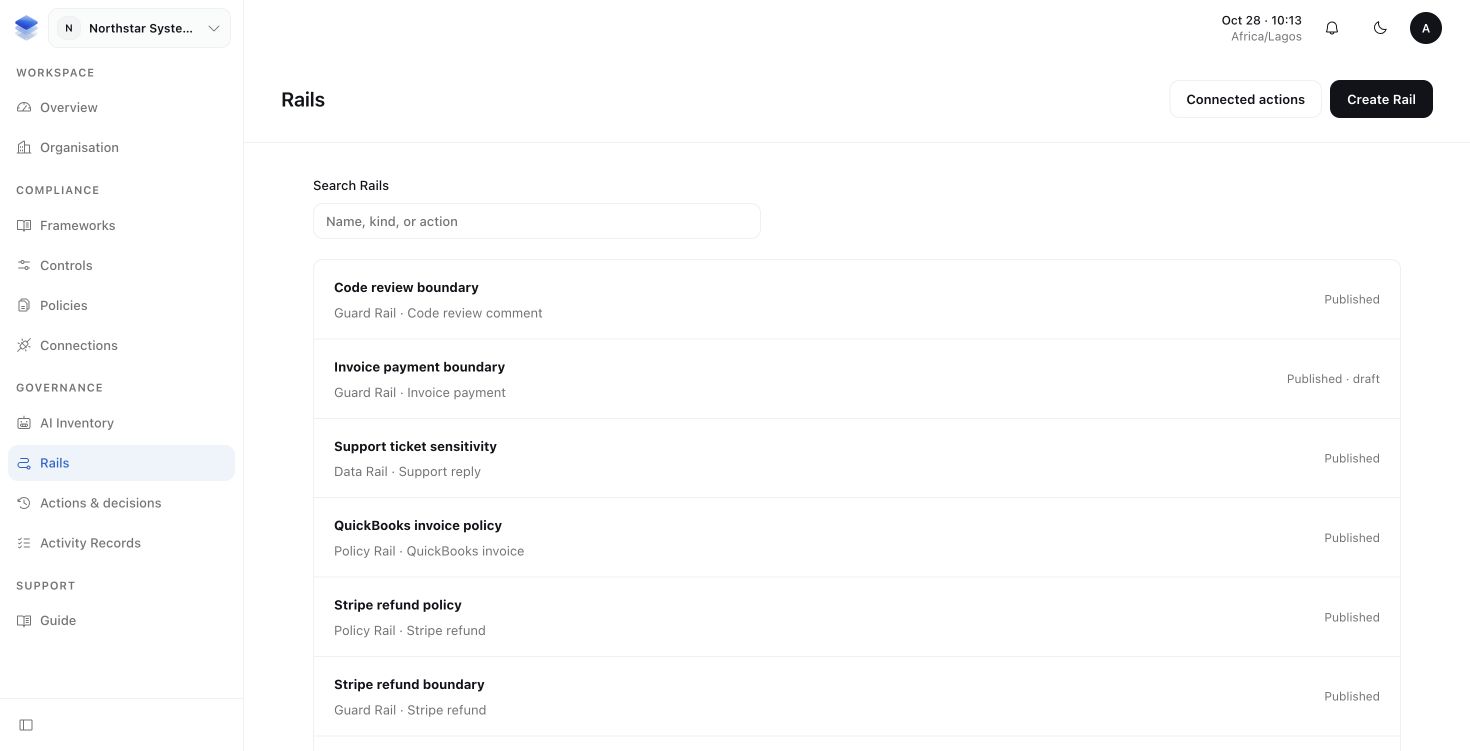
Open Rails, create a Rail for this action, and decide what it should allow, deny or send for human approval. Try the rule's examples, review it and publish it. The Rails guide walks through those choices.
For the first connection, choose a rule whose result you can explain for a safe example request. A draft does not affect your application.
4. Create the deployment
Return to your AI system in AI Inventory → Deployments and select Add deployment. Give this installation a name that makes sense to your team. A deployment is the application setup whose rules and history you want to track.
Open the deployment and keep it in Observe. In Overview → Rails for this deployment, choose the published Rail versions and apply them.
AuthRail now knows which AI system, action and rules belong together. The next steps connect that setup to your running application.
5. Connect the application
Complete these guides in order:
- Prepare the connection details. This shows where to copy your deployment settings, how to create the application's keys, and which files each process needs.
- Run the sidecar with Docker, the recommended container setup, or natively if your application runs directly on your host. The sidecar is the local service that checks your selected rules.
- Add the Node SDK, Go SDK or Python SDK around the function your application already uses. The SDK asks the sidecar to check the call and the returned result.
Once the sidecar is ready, install the SDK from your application's directory. Choose your language; each linked SDK guide continues from this command with its connection settings and first function check.
npm install @authrail/sdk-node@0.1.1Continue with Connect a Node application.
Your application keeps its business logic and provider credentials. Keep those credentials and the connection secrets outside the AI agent's reach.
The SDK connects your language's function calls to the sidecar. The sidecar holds and evaluates the selected rules, so Node, Go and Python use the same rule engine. How Runtime works explains why these are separate parts and how the sidecar receives rule updates.
6. Find your first request
Run a safe request through the connected function. In the deployment, open Actions & decisions and select its Action. Inspect the request check and result check, including their reasons.
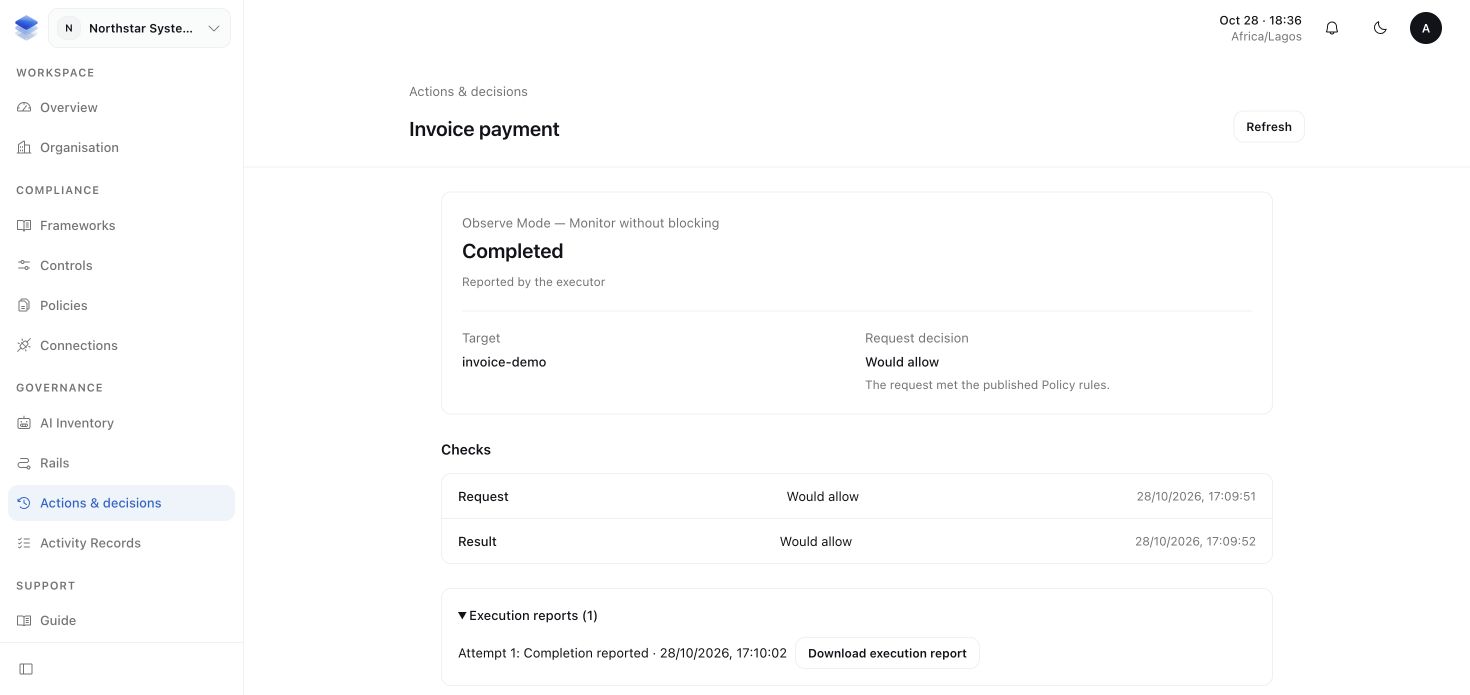
A report marked retained has reached AuthRail. A queued report is saved by
the sidecar and still needs delivery. The monitoring guide
explains how to inspect the sidecar if a request is missing.
An Observe decision describes what the rules would decide; your function can still run after a denial. When you are ready to require permission before the function runs, follow Observe and Enforce. Review the application's other access routes first.
The Runtime walkthrough shows the connected sample application, its sidecar logs and the resulting AuthRail records.