
Runtime walkthrough
Follow a sample request from the application to its checks, logs and AuthRail record.
What does using Runtime look like? This walkthrough follows an assistant asking to pay an invoice. You will see the application screen, the sidecar running beside it, and the resulting record in AuthRail.
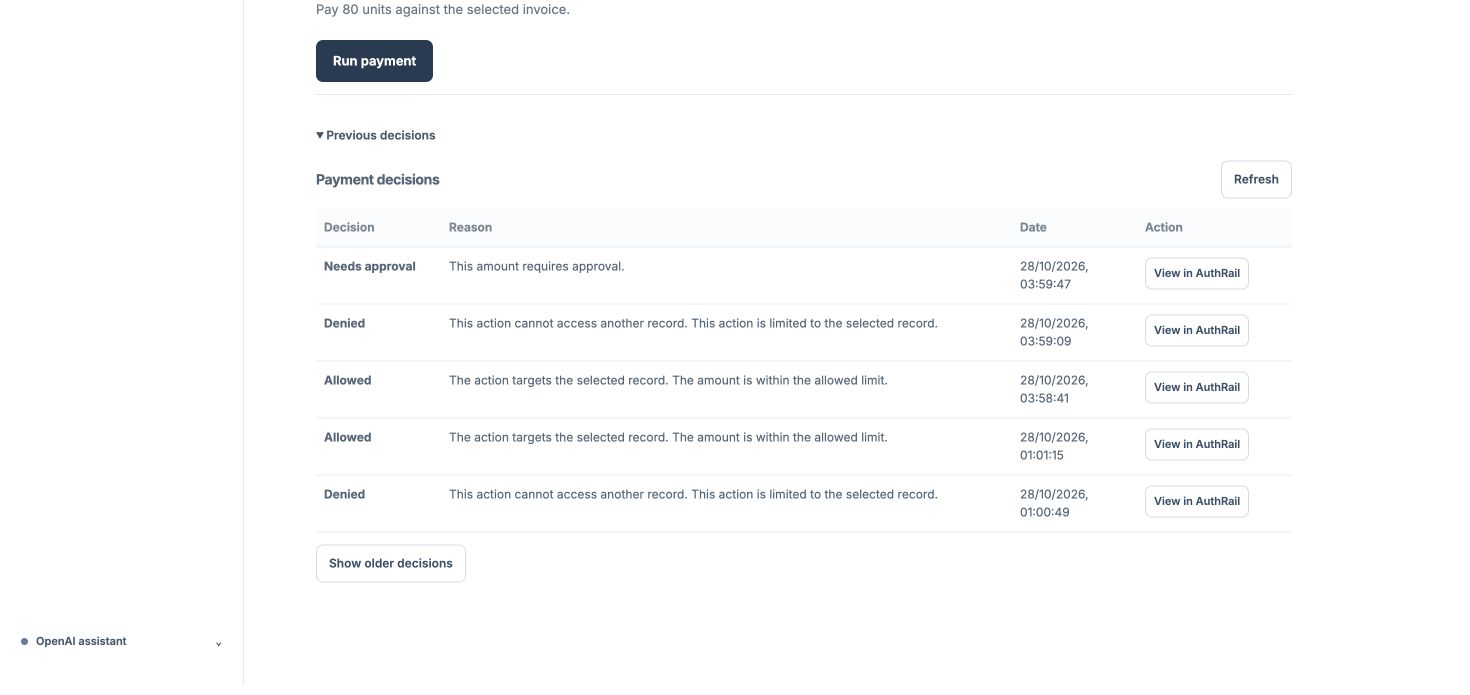
The invoice example uses a local sample ledger. It does not move real money. A separate Stripe example at the end shows how to compare an application's report with a provider's own test record.
1. Choose a request
The sample application has a selected invoice and three scenarios: an allowed amount, an invoice outside the rules, and an amount needing approval.
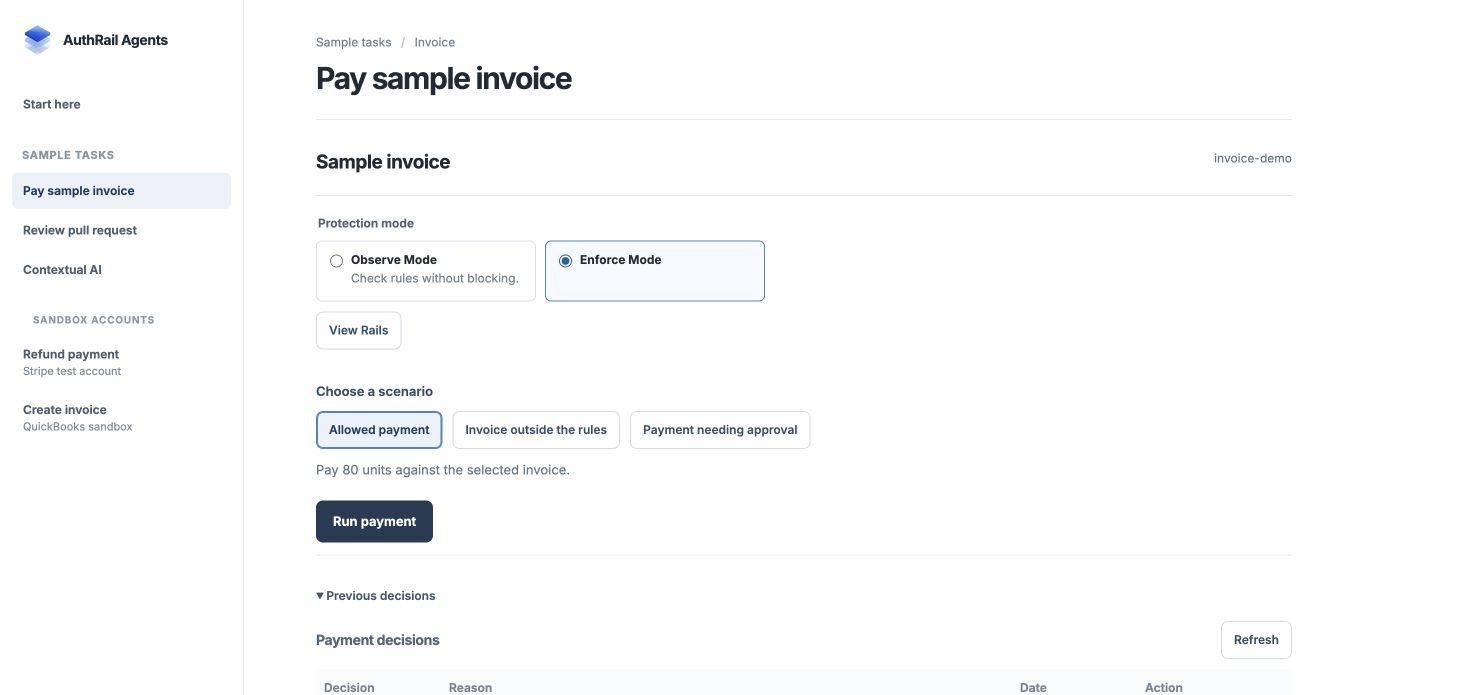
The application knows the signed-in user and the selected invoice. It checks those trusted details instead of accepting an invoice owner supplied by the agent.
| Scenario | Expected result in Enforce |
|---|---|
| Allowed payment | The application can continue after the required checks. |
| Invoice outside the rules | The protected payment stops. |
| Payment needing approval | The request waits for a reviewer. |
Your own application can use a chat screen, a background job or another interface. Place the SDK check around the function that performs the work.
2. Check that the sidecar is ready
The sidecar is the local service your application asks to check its Rails. Keep it running while the application makes requests.
This terminal shows a native sidecar and its local status response. The rules
are loaded (bundleValid: true), and there are no reports waiting for delivery
(pendingReports: 0).
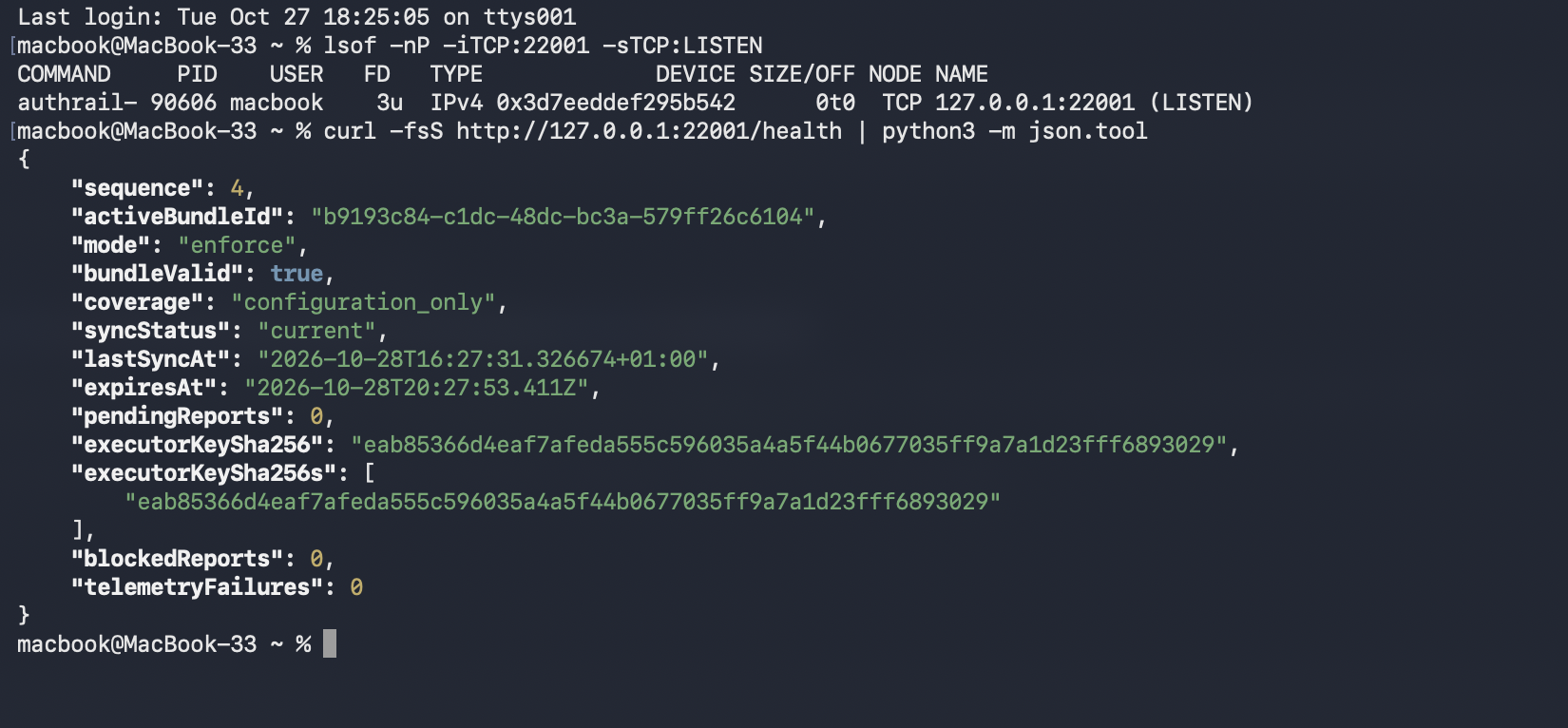
Use the Docker or native guide to run your own sidecar. The monitoring guide explains the status fields.
3. Run the allowed request
When the assistant requests a payment, the SDK asks the sidecar to check it. The application waits for the required permission and start report before performing the sample payment. It then reports completion and checks the result before returning it to the agent.
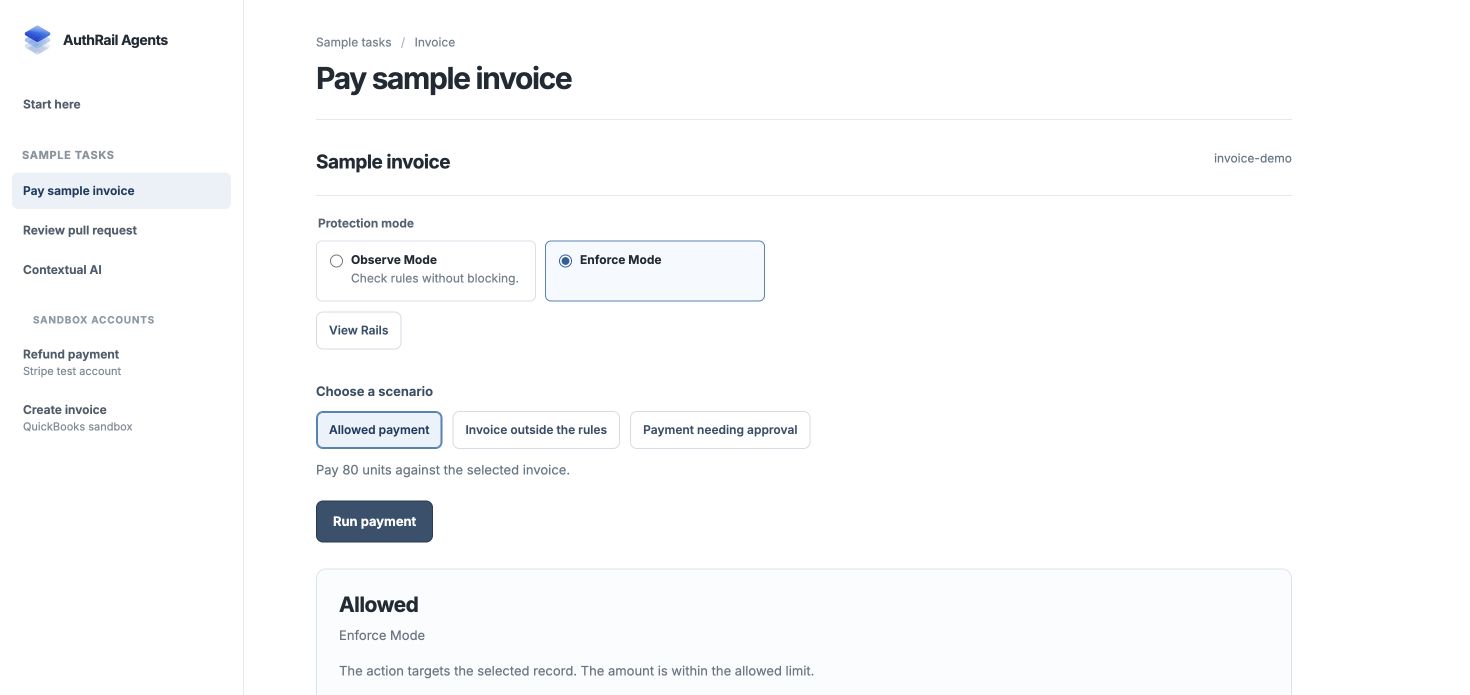
Try the other scenarios too. A denied request should create no payment. A request needing approval should wait rather than run automatically. The mode guide explains how Observe differs.
4. Read the sidecar events
The sidecar writes local logs while it handles requests. No monitoring service
is needed to read them. Follow the process output in your terminal or use
docker compose logs for the container setup.
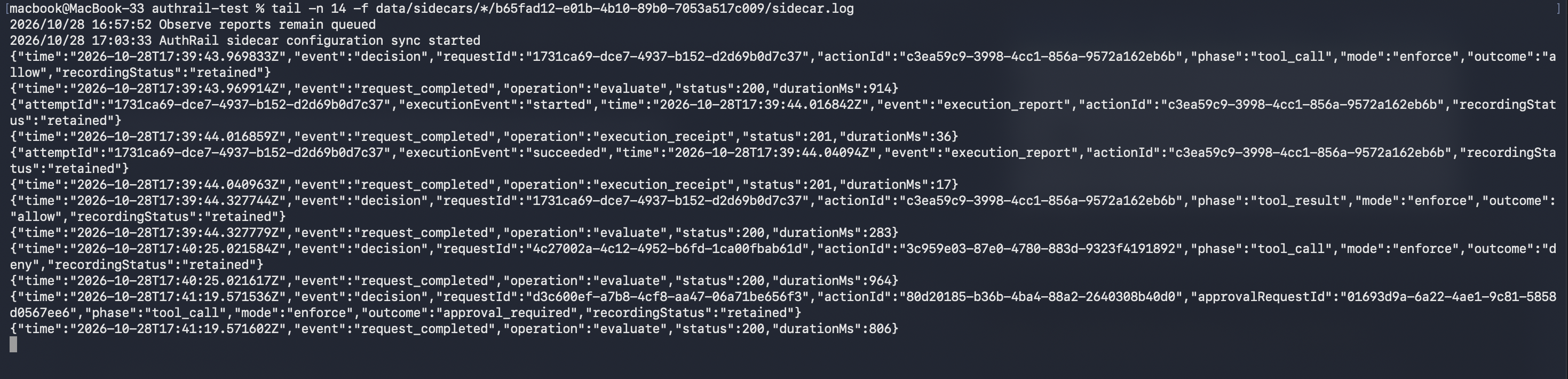
For the allowed request, read these events in order:
- Call allowed:
tool_call,allow,retainedmeans AuthRail saved the decision before the payment began. - Execution reported:
started, thensucceededare the application's reports about its attempt. - Result allowed:
tool_result,allow,retainedmeans the result check was also saved.
The later deny and approval_required lines describe separate requests. They
produced no sample payment. Use the request and Action IDs to follow one request
without mixing its events with another.
What if a report is queued?
retained means AuthRail acknowledged saving the report. queued means the
sidecar saved it locally for later delivery. A report_delivered event confirms
when that delivery succeeds.
In Enforce, the application holds an action if its required permission report cannot be retained. Delivering the report later does not automatically run the held action. In Observe, the function may run while its advisory reports are still queued.
An HTTP status: 200 line only says the local request completed. Read the
separate outcome field to understand the rule decision. See
monitoring for more about these events.
5. Open the Action in AuthRail
Use View in AuthRail beside the application's result or a row in its history. The Action brings the request, checks, approval and execution reports together.
Open Execution reports on the allowed Action:
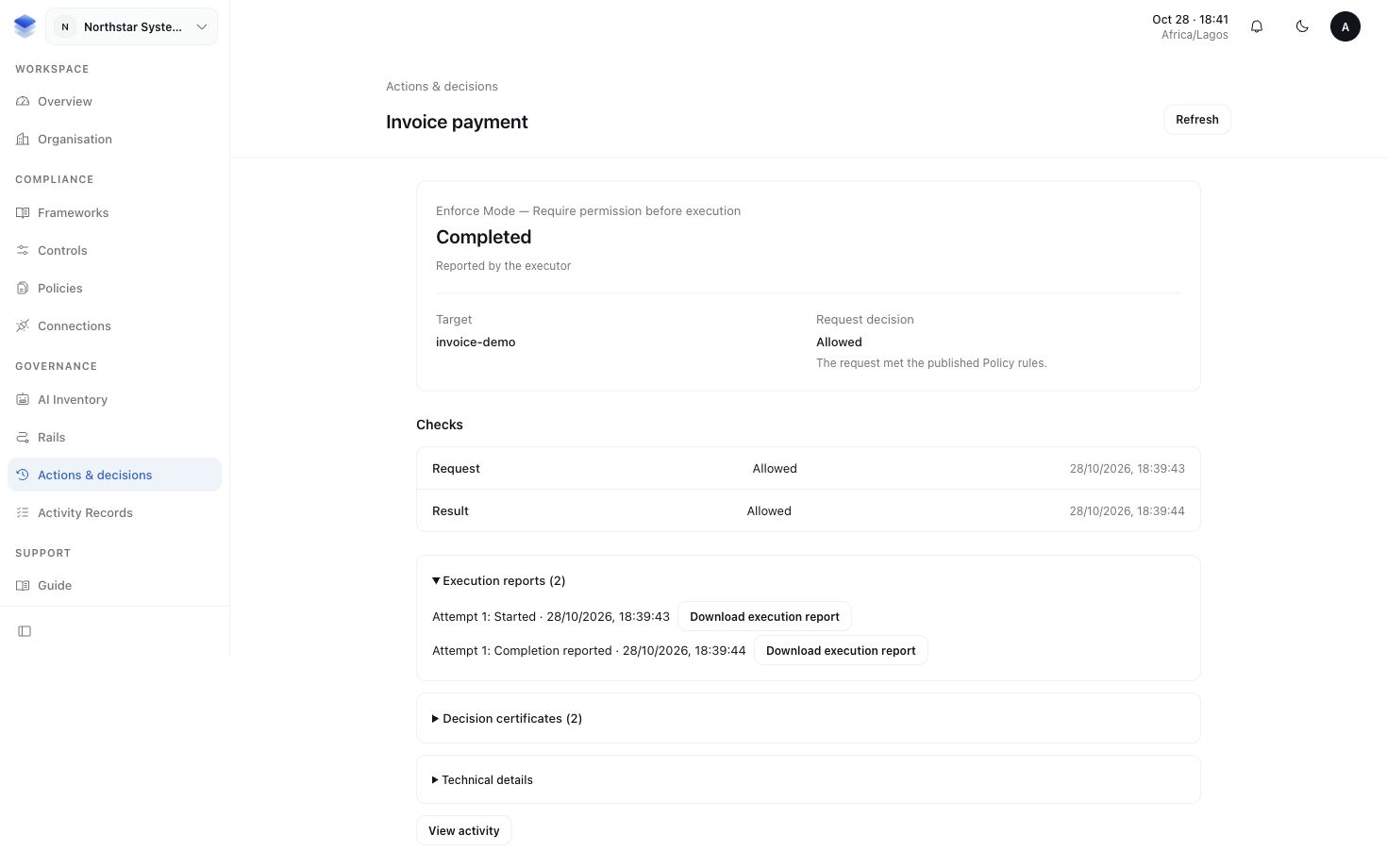
Allowed answers “was this permitted?” Completion reported answers “what did the application say happened?” To verify an external effect, check the matching provider record too.
6. Compare a provider-backed result
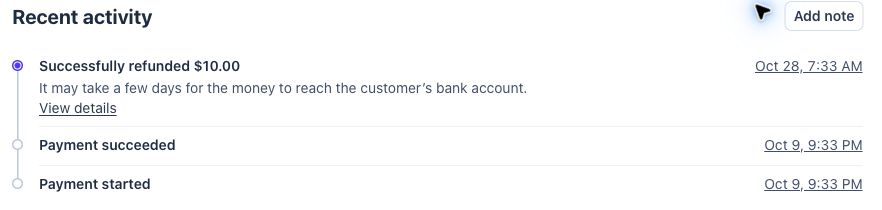
Here is a separate, previously completed Stripe test refund. The sample application reads the saved refund from Stripe and shows its amount, status and linked AuthRail decision.
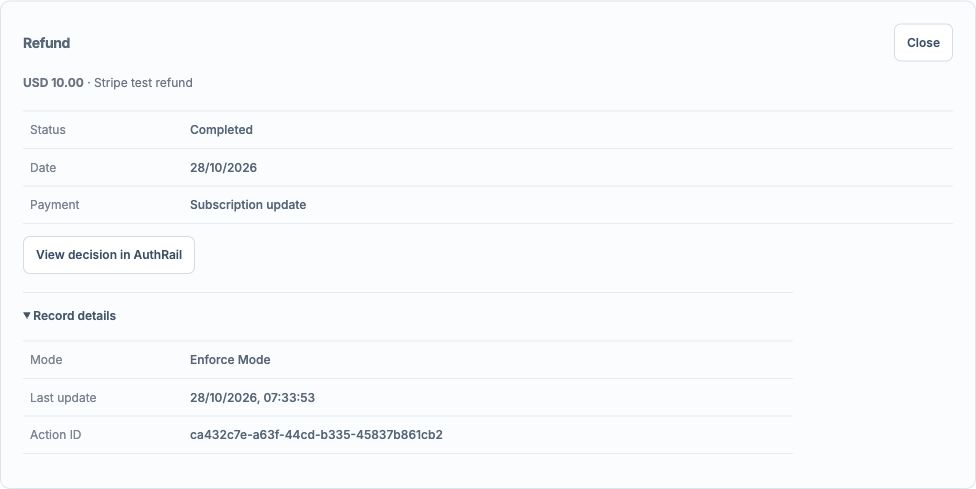
Stripe's own test dashboard shows the matching refund in its payment activity:
The same approach works for other providers. This existing QuickBooks sandbox invoice was read back from QuickBooks. Its amount, balance, delivery status and linked decision can be checked without creating another invoice.
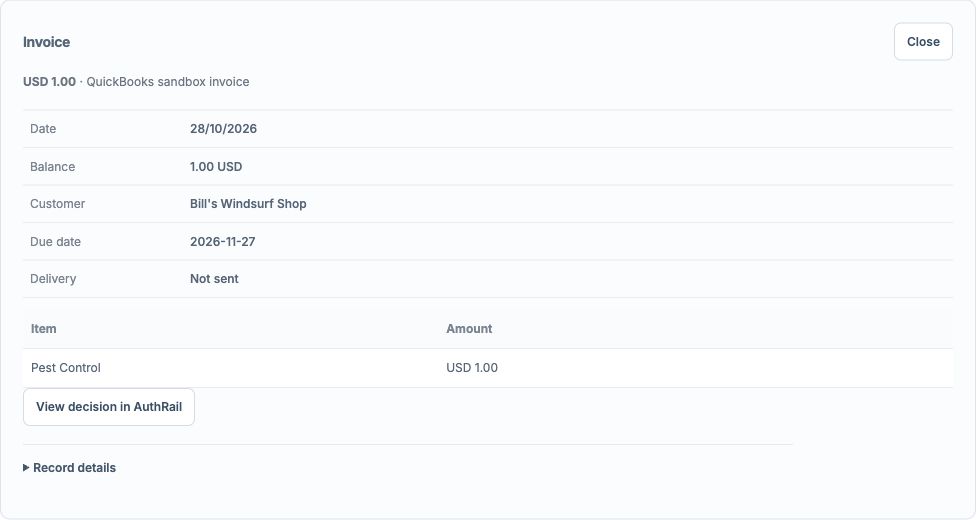
When checking your own provider, compare the account, record, amount, currency and status. Use the saved provider reference from your protected application. Do not rerun a payment merely to obtain a screenshot.
Compare the same journey in Observe
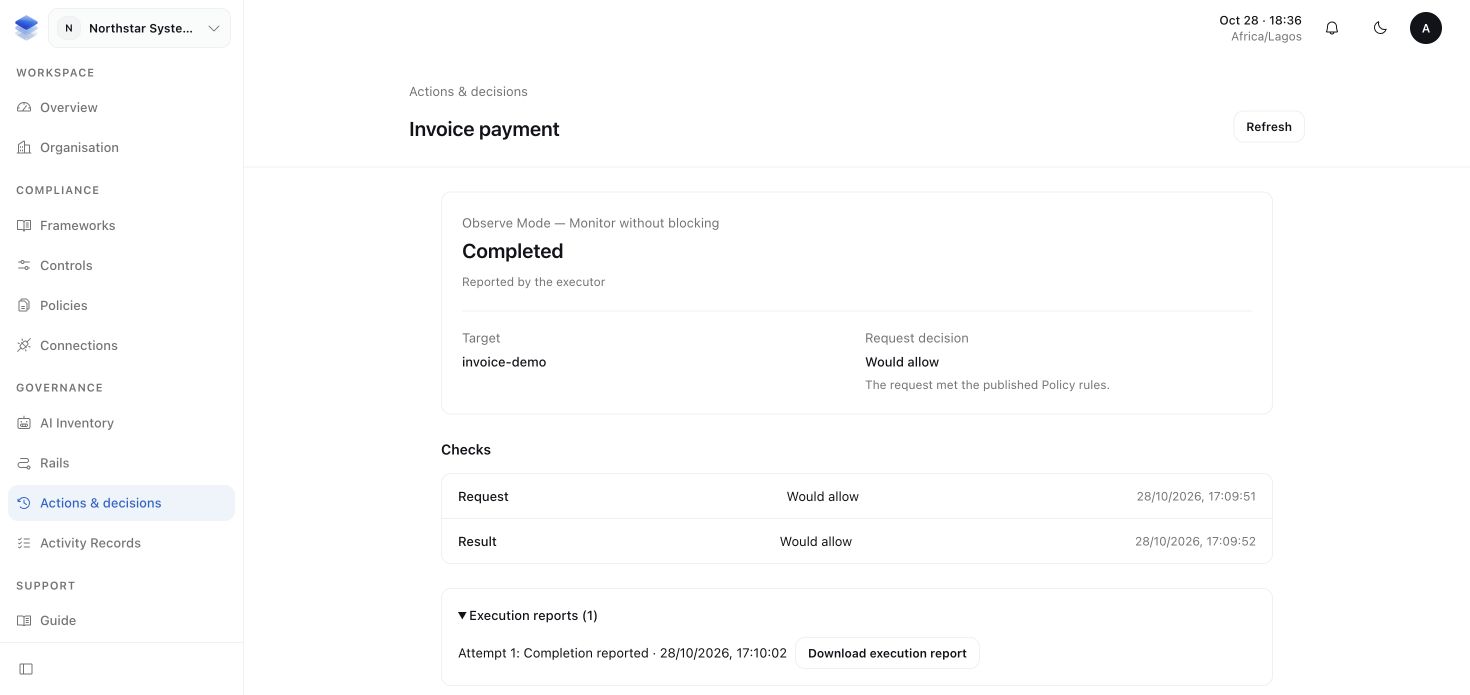
In Observe, the application can run the tool while AuthRail records what its rules would decide. This separate sample payment completed, and its initially queued reports later reached AuthRail.
Use the records in your governance work
A Control's Test or Evidence review can use relevant Runtime records to check whether a process worked. A list of allowed requests alone does not establish that a review Control worked over the whole period.
Continue with Rails to understand the rules, or connect your first application to build your own path.