
Identity and deployment
Get the connection settings and prepare the private files your application and sidecar need.
Before the application can send checks, AuthRail needs to recognise its sidecar and the application making those requests. This setup uses a deployment token from AuthRail and a signing key created by your application operator.
You will finish with four private files and the connection values from your deployment. The Docker, native and SDK guides use these same files. Complete the dashboard steps in Connect your first application first, then open that deployment's Integration setup tab.
1. Copy the deployment settings
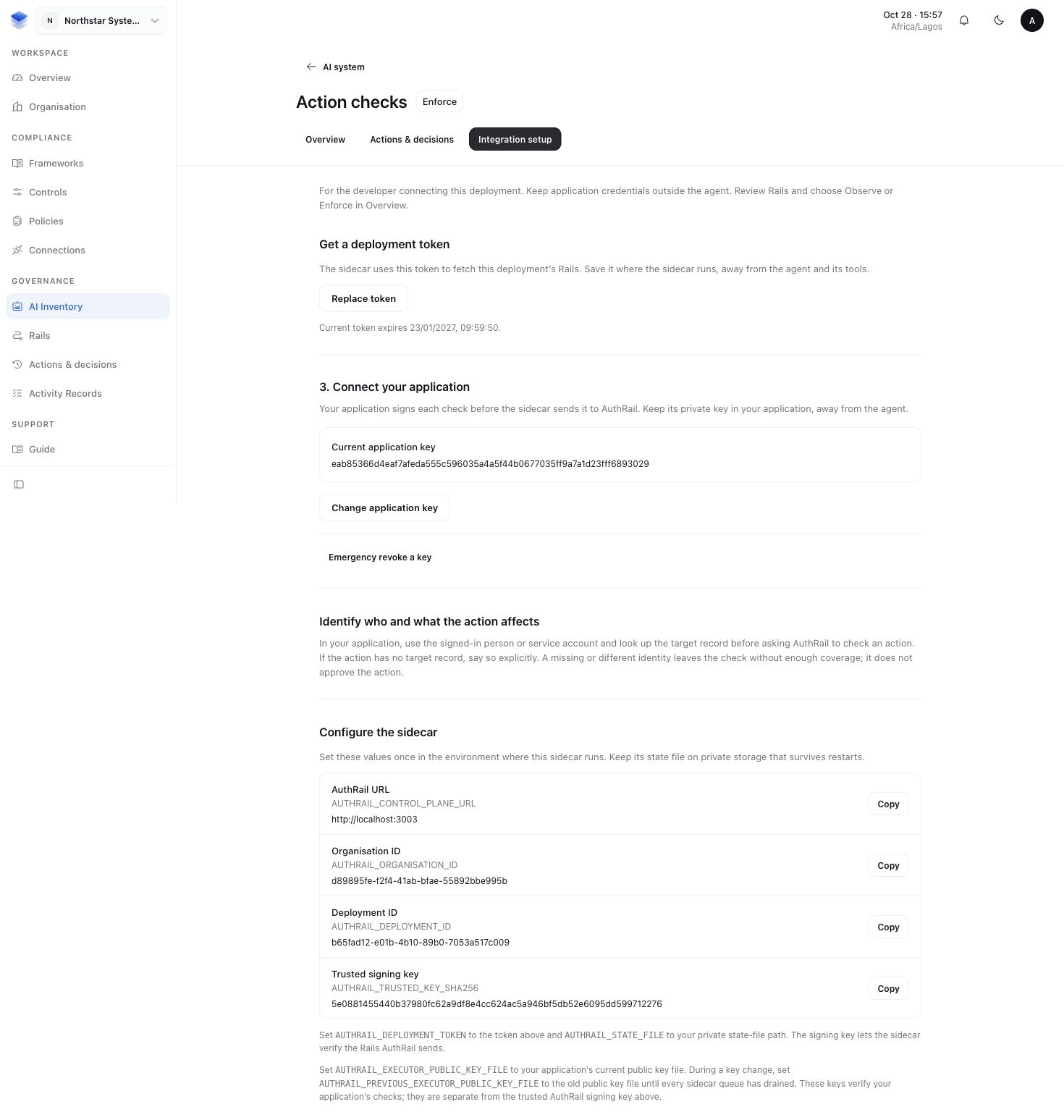
Under Configure the sidecar, copy these values into your private deployment configuration:
- AuthRail URL: the API address the sidecar connects to.
- Organisation ID: the organisation that owns this setup.
- Deployment ID: the installation you are connecting.
- Trusted signing key: identifies the AuthRail key that signs your rules. Copy it from this authenticated setup page, not from an arbitrary downloaded file. If the page shows two fingerprints during a key change, keep both as the comma-separated value shown there.
2. Save the deployment token
Create a private directory outside your source checkout. These examples use a POSIX terminal on macOS or Linux:
umask 077
mkdir -p "$HOME/.local/share/authrail/my-deployment"
chmod 700 "$HOME/.local/share/authrail/my-deployment"
In Get a deployment token, select Create token. AuthRail shows the new value once. Using your private editor or secret-provisioning tool, save that value in this file:
$HOME/.local/share/authrail/my-deployment/deployment-tokenThe sidecar uses it to fetch this deployment's rules and send reports. Keep it private. Replace token invalidates the old token; it does not reveal the previous value.
3. Create the application's key and local token
The application signs its requests so the sidecar and AuthRail can check where they came from. OpenSSL creates two related files: a private key the application keeps, and a public key you register in AuthRail.
With OpenSSL that supports Ed25519, run:
umask 077
openssl genpkey -algorithm Ed25519 -out "$HOME/.local/share/authrail/my-deployment/executor-private.pem"
openssl pkey -in "$HOME/.local/share/authrail/my-deployment/executor-private.pem" -pubout -out "$HOME/.local/share/authrail/my-deployment/executor-public.pem"
openssl rand -hex 32 > "$HOME/.local/share/authrail/my-deployment/adapter-token"
The last command also creates an adapter token. Your application and local sidecar share this separate secret to authenticate their local connection. It is different from the deployment token.
Run these commands once for a new installation. If you already registered a key, use its existing files; overwriting them would break that registration.
4. Register only the public key
Print the public file:
cat "$HOME/.local/share/authrail/my-deployment/executor-public.pem"Copy the complete PEM text into Integration setup → Connect your application → Application public key, then select Connect key.
Never paste executor-private.pem into AuthRail. Keep that key and all provider
credentials in the protected application, outside the agent's reach.
5. Use the files in the right place
The sidecar needs deployment-token, adapter-token and
executor-public.pem. The application SDK needs the same adapter-token
and executor-private.pem. Give both the organisation and deployment IDs.
The SDK also needs the reviewed Operation Version ID copied from Connected
actions.
The files can be supplied by a private secret store or Secrets Manager in a deployed application. Do not put their contents in Git, browser code, agent prompts or shared terminal captures.
Continue with Docker setup or native setup. The configuration reference lists the setting names used by each process.
How these identities differ
The AI system and deployment. AI Inventory records the system your organisation governs. A deployment is one installation of it. A configured provider or model describes that setup; it does not prove which model handled an individual request.
The two signing keys. AuthRail's trusted signing fingerprint identifies the key that signs your selected Rails. Your application's public key verifies requests signed by its private key. These keys have different jobs; do not substitute their fingerprints.
The caller and target record. The application obtains principalId and
sessionId from an authenticated user or service context. It resolves
resourceId through its own lookup. The SDK examples show how to supply these
values; an agent's statement about its identity or target does not authenticate
it.
A valid signature identifies an assertion from the registered application key. It does not independently verify the person, target record or provider effect.
Changing keys or using discovery
Application-key changes. Use Change application key to register the new public key before switching the application and sidecar. During the displayed overlap, configure the previous public PEM in the sidecar too. Check every sidecar's pending and blocked reports before retiring the old key. AuthRail cannot inspect those private local queues for you.
AuthRail signing-key changes. Integration setup can display two trusted fingerprints during a transition. Use both displayed values until that transition is complete. The sidecar also checks that configuration belongs to the intended organisation and deployment, is valid for this time, and is not older than configuration it has already accepted.
Optional discovery. A tenant manager can create a short-lived setup key. SDK discovery uses it to find or propose the AI Inventory item. Review and confirm that identity before Enforce. A discovery key is not the deployment token or permission to perform a business action.
Keep the full sidecar state directory through key changes and restarts. An invalid state file needs investigation through recovery, not deletion to make startup succeed.